Copied text gone missing? On macOS the Capsule bar can be opened with ⌘⇧V, so recently copied text, links, images, files, and colors sit together at hand. Learn how to select and paste first, then use ⌘S to keep what you use often, and you can start. This account follows the repository documents. It was not tried on a machine. The steps follow the documents’ current description.

Start from what was just copied
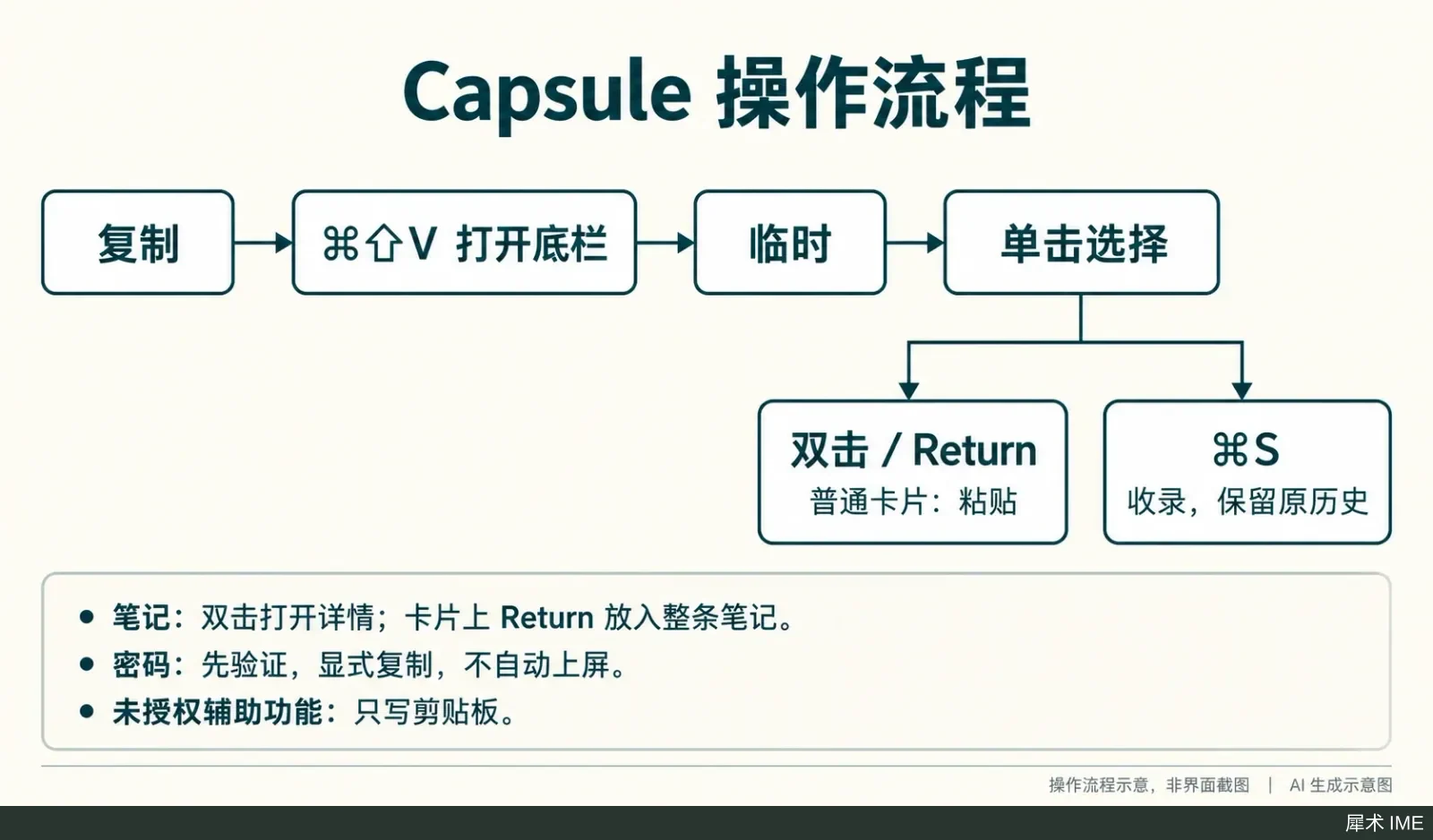
Click the input position in the target app first, copy a piece of text that has no sensitive information, then press ⌘⇧V to open the bar and look under “Temporary” for that record. The README calls this kind of immediate content “recently copied.” The current interface name in CAPSULE.md is “Temporary.”
An ordinary card selects on a single click. A double click or Return is what pastes. After it is selected, ⌘S can keep something you use often. An ordinary ⌘S save does not delete the original history. The first time, confirm the behavior with one line of test text, and only then handle real content.
The global shortcut can be used under another input method, but the README says that opening Capsule first switches to XSIME, and that closing the window does not switch back by itself.
What the five modules hold
The bar and the management page use the same five module entrances. The management page can be entered from the bar. Finding things by use is clearer than treating every card as clipboard history.
| Module | How to read it the first time |
|---|---|
| Temporary | Recently copied content. Links are kept with text |
| Capture | Captured or imported images and video. GIFs count as video |
| Notes | Text notes, which can be filtered as bullets, rich text, and so on |
| Resources | Documents, projects, Skills, and the like. An ordinary resource records a path on this machine. It does not copy the project directory |
| Passwords | Logins, keys, and other secrets, kept out of ordinary search and out of temporary history |
These modules are on by default. They can be turned on or off under Settings, Plugins, Capsule plugin. Turning one off does not delete what was stored. The grouping follows the current five-module account in CAPSULE.md[2].
Notes and passwords are handled differently
Notes and passwords cannot be treated as “double-click to paste.” The current documents say a double click on a note card opens the detail, and Return on the card pastes the whole note. Once you are in the detail, Return pastes only the selected line. ⌘C can copy the selected line.
Password detail first asks for a four-group chord passphrase. Passing that check does not copy or commit the secret by itself. The detail stays open for 60 seconds. The secret stays masked. The space bar or an eye button can show it alone for at most 15 seconds. Copying needs an explicit action. Do not write a password into an ordinary note instead of using the password module. That is what the documents say. This article did not check a real client.
Paste permission, and where things are stored
Pasting needs the accessibility permission. If the content only reaches the system clipboard and does not land in the input box, check the auto-paste setting under Settings, Capsule, and the accessibility authorization. The documents say that without authorization it falls back to writing the clipboard only, and you can return to the target app and press ⌘V yourself. This article did not check the exact path of the current system authorization screen.
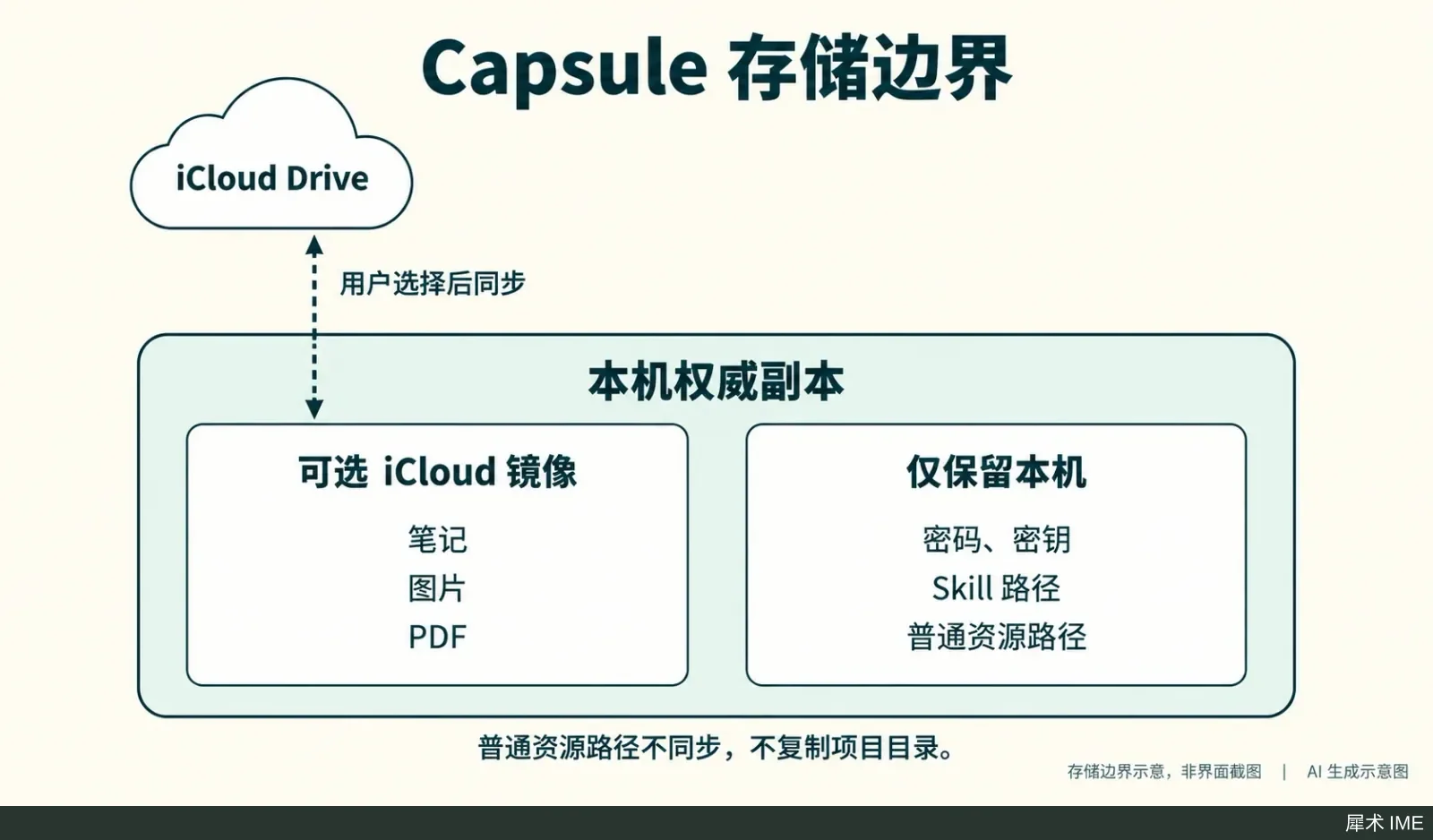
The README’s table of bar abilities marks them “on this machine only.” Management abilities list optional iCloud separately. The two have to be read apart. CAPSULE.md says the directory on this machine is always the authoritative copy. Ordinary notes, images, and PDFs can optionally be mirrored on iCloud Drive. Passwords, keys, and a Skill’s local path do not take part in sync, and ordinary resource paths do not sync across devices either.
“Stored on this machine” does not mean isolation from every program under the same account. The documents explicitly take the same macOS user as the trust boundary. They do not promise to stop a malicious process that already has that user’s permissions. Walk through “find, select, paste, keep” with ordinary test content before deciding what to save.
References
-
README.md, the table of main abilities. The ability table of mounted commit 7ef780d was read.
-
CAPSULE.md, the five modules, bar behavior, and local data. The mount did not include this file. The text on GitHub main was read in addition. Newer statements in that file take priority over older records.
-
Compiled from the repository documents. Not tried on a machine. A repository description is not an item-by-item check of the installed package.
-
Compiled and published by Scholay. For a takedown request, send feedback.
-
Also published at Enter Scholar.