The macOS Xishu IME (XSIME) has an optional official plugin, Morse code (builtin.morse, version 0.1.0). Once it is on, the space bar in the Buffer becomes a telegraph key. A short press is a dot. A long press is a dash. After a pause the letters decode by themselves. The decoded result is English. [1][2] This account follows the public documents of version 1.2.0 and says how to install it, how to send, and how to correct a mistake.
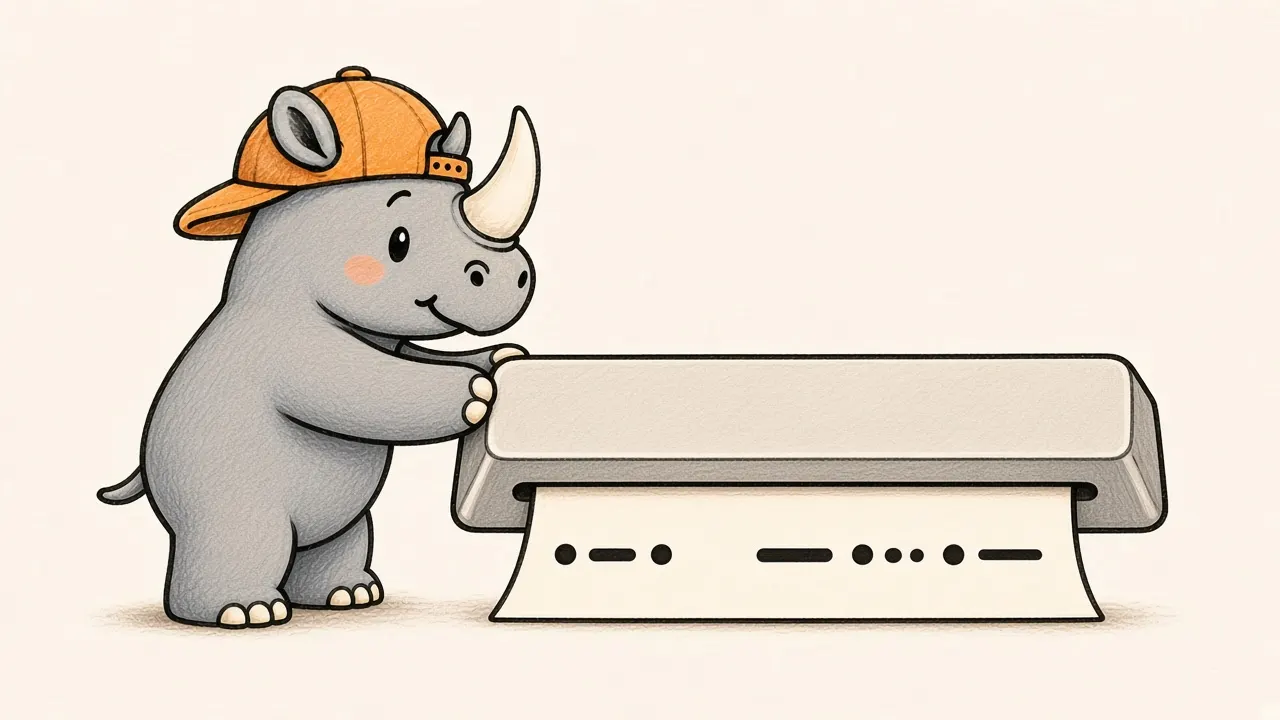
Drawing: an original Scholay sketch, made with AI assistance. In Morse mode the space bar sends dots and dashes. There are no letters on the tape. This is not a screenshot of the software.
Scope: Xishu IME 1.2.0 for macOS. The plugin manifest states a minimum host version of 1.1.0, and the only release platform is macOS. [2]
Step one: download the plugin and turn it on
Morse code is not preinstalled with the package. The official plugin table in the README lists it as “download when needed in settings,” and the default state is disabled. An optional plugin has to be turned on by hand after it is downloaded. [1]
- Switch to Xishu IME and press
⌘⇧Sto open settings. Settings open only when Xishu IME is the current input method. [1] - Find the Morse code plugin in settings, download it, and turn it on by hand. [1]
- Press
⌘⇧Bto open the Buffer. The Buffer is the text workbench before Xishu IME commits. Text enters the buffer first, and is delivered to the current input field only after it is confirmed. [1] - In the Buffer’s plugin picker, choose Morse code. [3]
Step two: learn the interface
The Buffer in Morse mode is split into an upper part and a lower part. [3]
- The input bar above. On the left are the mapping slot and the slot waiting to be combined. The waiting slot shows the dots and dashes already pressed. The mapping slot shows the letter that string currently corresponds to. If the string can no longer make any character, the mapping slot shows
?, and the code just rejected shows✕. On the right a line walks from left to right at an even speed. Each keypress is drawn where it happened. There is a fine mark where a letter is committed. When the line reaches the right end it returns to the left and covers the oldest record. At the far right is a key-state lamp. It lights when the key is down, and it changes color after the hold passes the dash threshold. - The output below. Decoded English, one block to a word. A word that has already ended can be sent on its own. The word being sent has to wait for a pause, or for
Return, before it can be sent.
Step three: send a word
There are only a few rules. [3]
| Action | Result |
|---|---|
| A short press of the space bar | A dot (·) |
| A long press of the space bar, past the dash threshold of the chosen speed | A dash (−) |
| A pause | The dots and dashes waiting to be combined become a letter |
| A longer pause | The current word ends, and the next letter starts another word |
Return |
Commit the waiting letter and the current word at once, and send them by the Buffer’s ordinary path |
Take SOS as an example. S is three dots. O is three dashes. At the default Standard speed, holding the space bar for less than 200 milliseconds is a dot, and longer than 200 milliseconds is a dash. After a pause of 480 milliseconds, the waiting dots and dashes decode into a letter. After a pause of 1.25 seconds, the current word ends. [3] So the sending is: short, short, short, pause about half a second; long, long, long, pause again; short, short, short, then press Return to commit. The output shows SOS in capitals.
There is a sound while sending. Holding the space bar plays a 680 Hz sine sidetone. Each decoded letter is a short high tone. A code that cannot be recognized is a low tone. Audio starts only on the first keypress. It closes after 20 seconds of silence, when the plugin is switched, or when a protected state is entered. [3]
How to choose a speed
The toolbar offers three speeds. They differ in three time thresholds. [3]
| Speed | Dash threshold | Gap between letters | Gap between words |
|---|---|---|---|
| Slow | 280 ms | 750 ms | 1.9 s |
| Standard (default) | 200 ms | 480 ms | 1.25 s |
| Fast | 150 ms | 320 ms | 0.85 s |
When practicing at the start, if dashes are often sent as dots, or a letter is decoded before it is finished, switch to Slow. The dash threshold widens to 280 milliseconds, and the gap between letters lengthens to 750 milliseconds. After that is familiar, switch to Standard or Fast.
How to correct a mistake
- Press
Delete. First delete the last dot or dash that has not yet become a letter. When nothing is waiting to be combined, delete the last letter. [3] - Send eight dots in a row. That is the operator’s correction signal. It deletes one letter. [3]
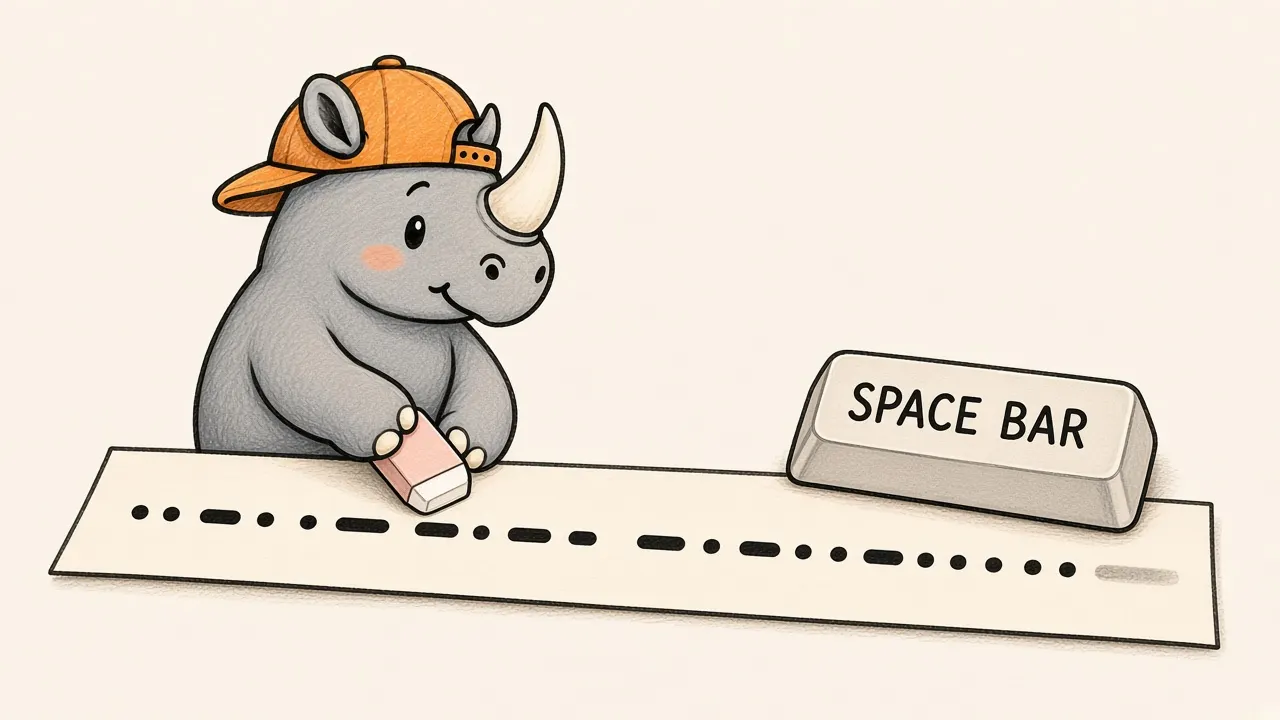
Drawing: an original Scholay sketch, made with AI assistance. A wrong send can have its last mark removed, and then continue.
What happens to other keys in Morse mode
Morse mode accepts only the space bar as the telegraph key. Other letter keys and number keys are swallowed. They do not enter a hidden original-text track. Return, Esc, Tab, the arrow keys, and the various shortcuts keep the Buffer’s existing behavior. [3]
Which characters can be sent
English only: A–Z, output in capitals, 0–9, and the ITU punctuation . , ? ' ! / ( ) & : ; = + - _ " $ @. [3] Chinese telegraph codes are outside this plugin.
References
-
scholay-xsime. Xishu IME README. v1.2.0.
-
scholay-xsime. builtin.morse manifest.json. v1.2.0.
-
scholay-xsime. Morse code (0.1.0). v1.2.0.